

Overview
To authenticate with Mimecast, you need:- Client ID – Your Mimecast API 2.0 application’s Client ID
- Client Secret – Your Mimecast API 2.0 application’s Client Secret
Prerequisites:
- Admin access to your Mimecast Administration Console.
- Access to the Cloud Gateway section.
Instructions:
Step 1: Create an API Application
- Log in to your Mimecast Administration Console and navigate to Administration > Services > Cloud Gateway > API and Platform Integrations > API 2.0 Applications.
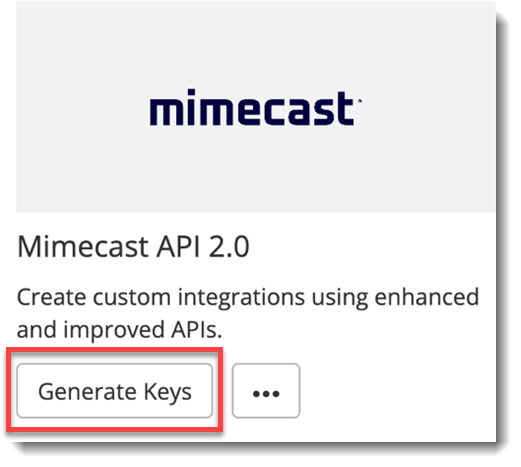
- Click Generate Keys.
- Configure your application:
- Application Name: Enter a descriptive name for your integration
- Application Description: Provide details about what this integration will do
- Authentication Type: Select Client Credentials (OAuth 2.0)
- Select the appropriate API permissions/scopes that your integration requires based on the Mimecast APIs you plan to use.
- Click Create or Save to register the application.
Step 2: Copy your credentials
- After creating the application, the Client ID and Client Secret will be displayed.
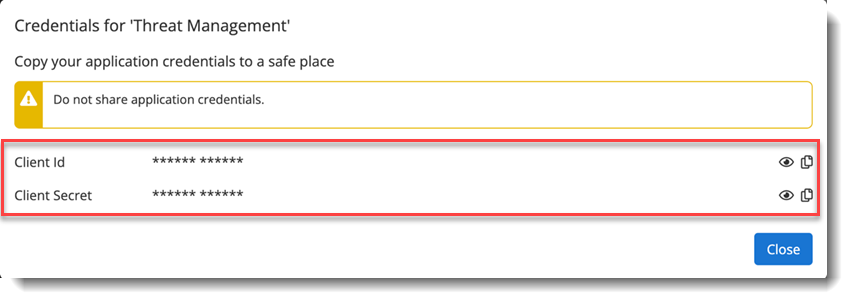
Copy and securely store both values immediately in a credentials vault. The Client Secret is only displayed once during the registration/configuration process and cannot be retrieved later. If you lose the Client Secret, you will need to regenerate it or create a new application.
Step 3: Enter credentials in the Connect UI
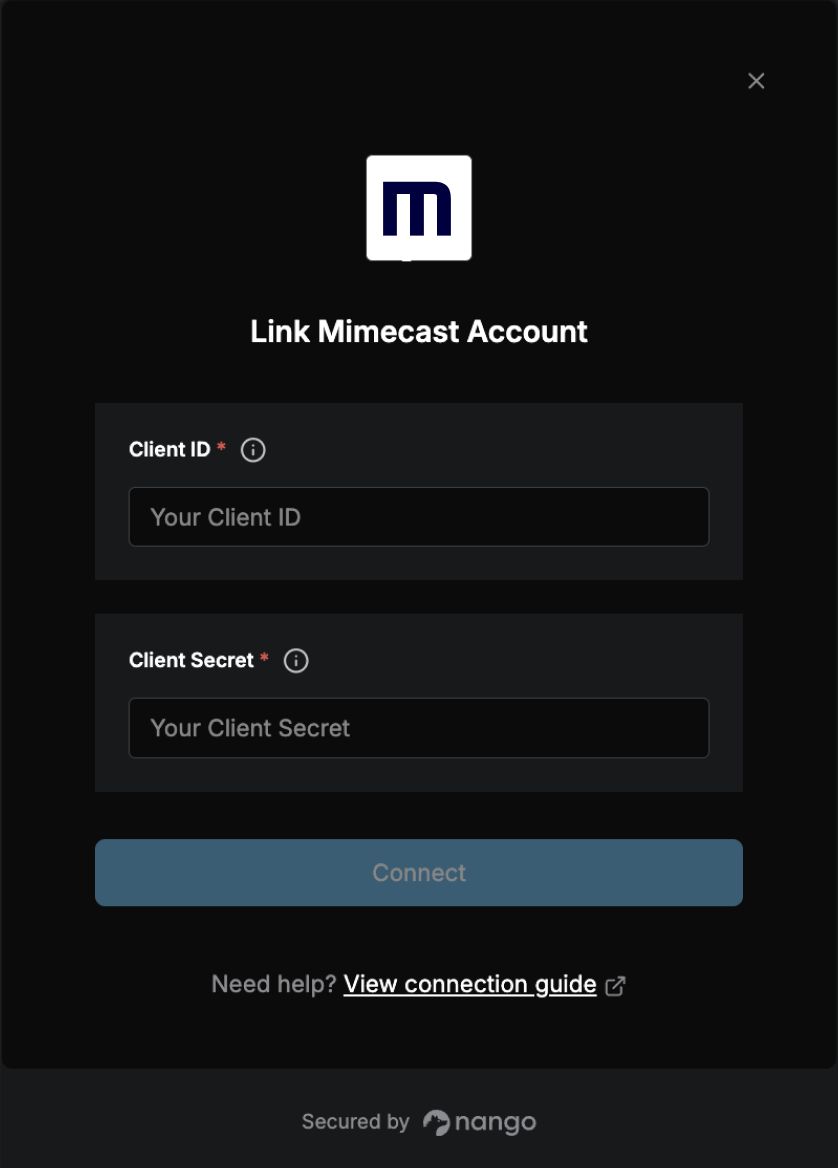
Once you have your Client ID and Client Secret:- Open the form where you need to authenticate with Mimecast.
- Enter your Client ID and Client Secret in their respective fields.
- Submit the form, and you should be successfully authenticated.
Additional Information
- Token Expiration: Access tokens obtained through the Client Credentials flow have a Time To Live (TTL) of 30 minutes. Nango will automatically refresh the token when it expires.
- Security Best Practices: Store your Client ID and Client Secret securely. Never commit these credentials to source control or expose them in client-side code.