Overview
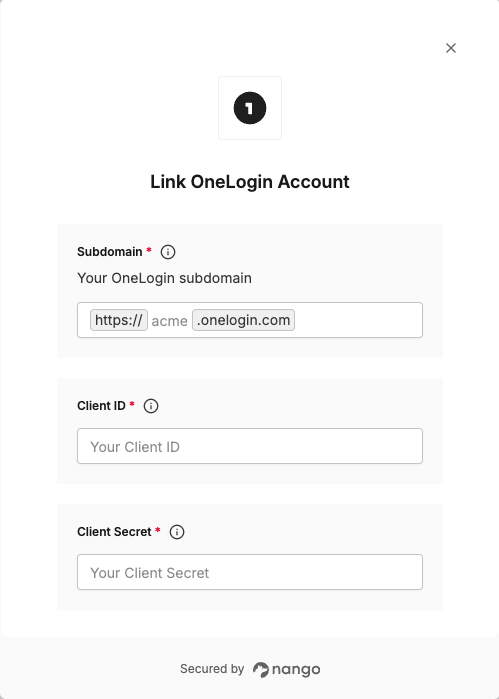
To authenticate with OneLogin using OAuth2 Client Credentials, you need:- Subdomain - Your OneLogin account subdomain.
- Client ID - A unique identifier for your API Credential Pair.
- Client Secret - A confidential key used to authenticate your API Credential Pair.
Prerequisites:
- You must have a OneLogin account with administrator access.
Instructions:
Step 1: Finding Your Subdomain
- Log in to your OneLogin account.
- Look at the browser’s address bar at the top of the page.
- Your Subdomain is the value between
https://and.onelogin.com. If you’re logged in and the URL in your browser is:https://acme.onelogin.com/portal, your subdomain isacme.
Step 2: Generating API Credentials
- Log in to your OneLogin Admin Console as an account owner or administrator.
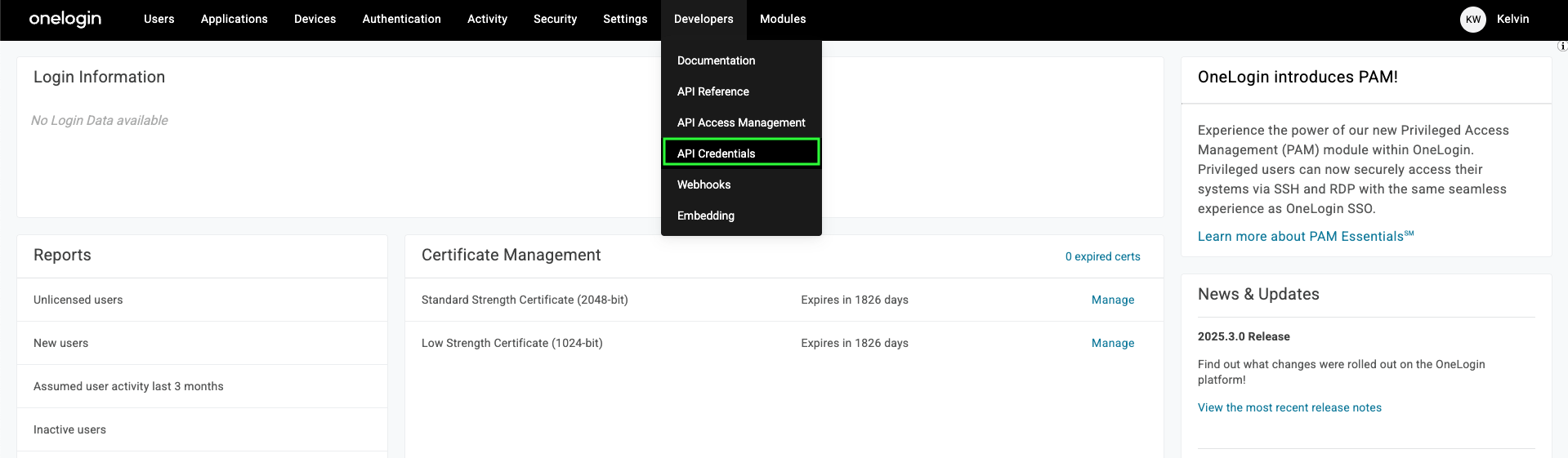
- Navigate to Developers > API Credentials.
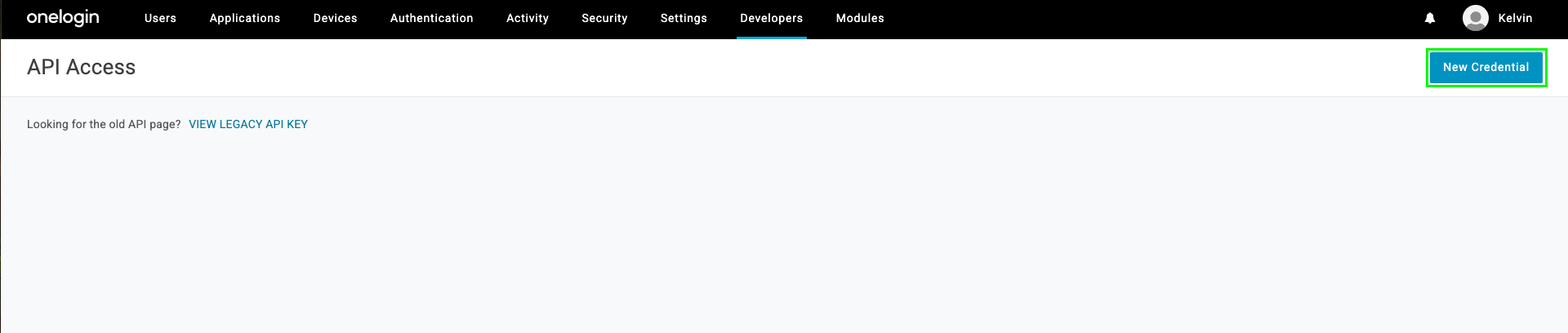
- On the API Access page, click the New Credential button in the top right.
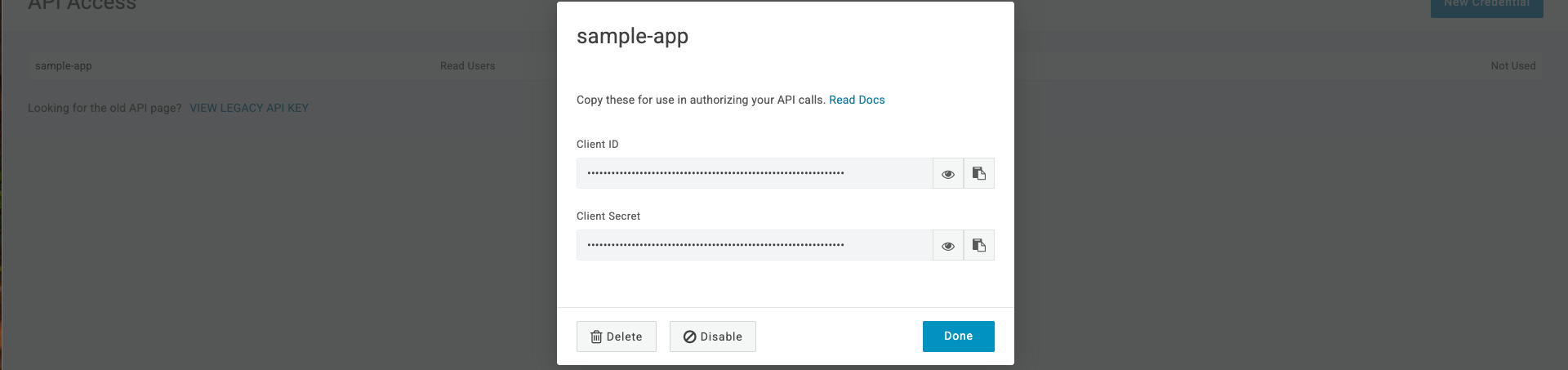
- Give your credentials a meaningful Name, select the appropriate Scope for your integration and click Save to generate your client credentials.

Step 3: Enter Credentials in the Connect UI
Once you have your Subdomain, Client ID and Client Secret:- Open the form where you need to authenticate with OneLogin.
- Enter your Subdomain, Client ID and Client Secret in their respective fields.
- Submit the form, and you should be successfully authenticated.